Governance & Security
Who Can Talk to Your Agent? Securing Authentication, Sharing and Publishing Channels
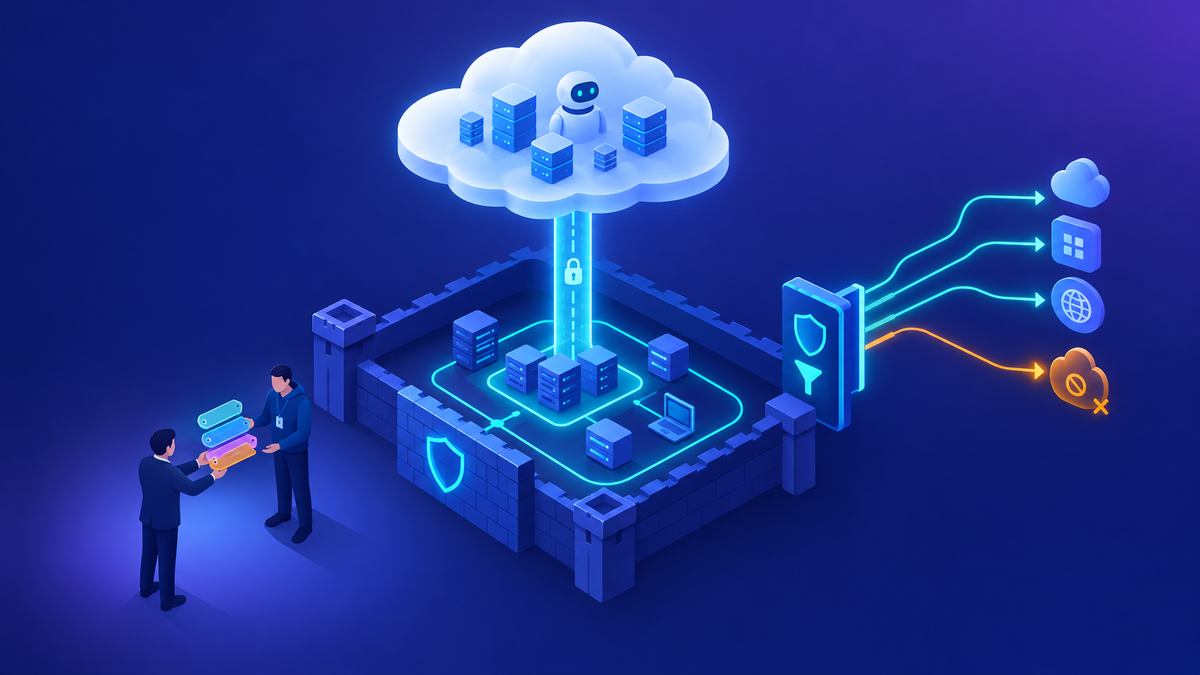
Every Copilot Studio agent has three doors: how users sign in, who it's shared with, and where it's published. Here's how I help customers lock each one before anything goes live.
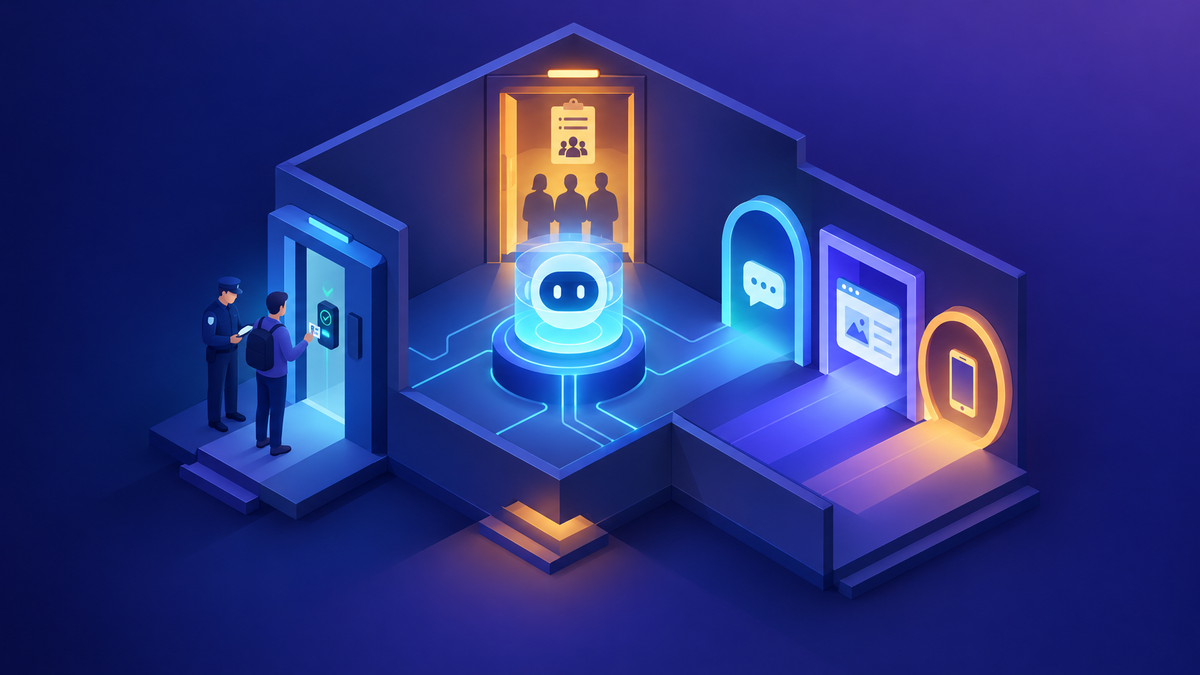
When a customer is about to let makers publish agents, the first question from the security team is almost always “who can actually talk to this thing?” It’s a fair question, and the answer is usually “it depends on three settings that live in three different places.”
Authentication is set on the agent. Sharing is set on the agent but limited by the environment. Channels are set on the agent but governed by data policies and, now, admin controls in the Power Platform admin center (PPAC). If you only lock one of these, the other two stay open. In this post I go through each door, the central controls that sit above them, what changes when the audience is external, and the bare minimum I ask for before anyone is allowed to publish.
A quick caveat
Two of the admin controls in this post, authentication for agents and agent access channels, are in preview as of October 2026. Preview features can change and aren’t meant for production use. Check their current status on Microsoft Learn before you build policy around them.
In this post
- The three doors
- Door 1: Authentication
- Door 2: Sharing
- Door 3: Channels
- Central controls in PPAC
- Data policies as the backstop
- Customer-facing agents
- Pre-publish checklist
- Decision table by audience
01 The three doors
Here’s how I approach it. At each door I ask the same question: who gets through, and who decides?
Door 1
Authentication
Does the user have to sign in, and with what identity provider? This decides whether you can control access at all.
Door 2
Sharing
Which individuals or security groups can chat with the agent? Only meaningful when the agent requires sign-in.
Door 3
Channels
Where is the agent reachable: Teams and Microsoft 365 Copilot, a website, or a third-party channel?
Sharing depends on authentication, and channels limit which authentication modes work. So I always start with door 1.
02 Door 1: Authentication
Copilot Studio gives makers three options under the agent’s Settings → Security → Authentication. New agents default to Authenticate with Microsoft, which is the right default for most internal work. The risk is that a maker switches it to No authentication to make a demo work and forgets to switch it back.
| Mode | Who can chat | What to know |
|---|---|---|
| No authentication | Anyone who has the link or finds the agent, for example on your website | You can’t control who chats with it, and sharing doesn’t restrict it. The agent can only reach public information. Use it only for genuinely public content. |
| Authenticate with Microsoft | Signed-in Entra ID users in Teams, SharePoint, Power Apps and Microsoft Copilot | No manual setup. You control who can chat through sharing. Required for the built-in Teams + Microsoft 365 channel. It doesn’t provide an access token, and it isn’t available for agents that integrate with Dynamics 365 Customer Service. |
| Authenticate manually: Entra ID | Users who sign in through your Entra app registration | Works on other channels, like a custom website. Turn on Require users to sign in so sharing can control who chats with it. |
| Authenticate manually: Generic OAuth 2 | Anyone who can sign in to that identity provider | Useful for customer identity providers. You can require sign-in, but you can’t use sharing to pick specific users. |
My tip
Authentication changes only take effect after the agent is published. And if an agent has tools that need user credentials, don’t turn authentication off at the agent level. Those tools stop working.
03 Door 2: Sharing
This is a common point of confusion. Sharing an agent for chat is different from sharing it for authoring. Coauthors can view, edit, configure, share and publish the agent, and they need the Environment Maker role. Chat-only users can be added in three ways:
- Individuals: good for pilots and small teams.
- Security groups: what I recommend for anything beyond a pilot, because membership is managed in Entra, not in the agent. Microsoft 365 groups that aren’t security-enabled can’t be used.
- Everyone in the organization: appropriate for a small number of reviewed, org-wide agents. Treat it as a publishing decision, not a convenience.
Users also need the ChatBotReaders privilege in the environment. Environment Maker includes it, but I’d rather give chat-only users a custom role with just that privilege. If you want the background on how those roles fit together, see my post on the Power Platform admin roles you can’t find in the UI.
Sharing limits in Managed Environments
In a Managed Environment, admins can control who can grant Editor or Viewer permissions, restrict sharing to individuals only (no security groups), and cap the number of viewers per agent. You can set these per environment or at scale through environment groups and rules.
The gotcha
Sharing limits only apply to agents that require authentication. An agent set to No authentication walks straight past them. That’s why I never treat sharing limits as a control on their own. Also note that the rules are checked when someone tries to share, existing access isn’t removed, and enforcement can take up to an hour to start.
From the field
During a governance walkthrough with a large enterprise, the most common complaint was “I shared the agent and my colleague still can’t open it.” In almost every case the user wasn’t in the environment, didn’t have a role there, or wasn’t in the security group the agent was shared with. Sharing the agent was only one step. The environment access had to be fixed too.
04 Door 3: Channels
Publishing makes the latest version live. Channels decide where users can reach it. Each channel family carries a different risk profile:
| Channel | Typical audience | What I check |
|---|---|---|
| Teams + Microsoft 365 Copilot | Internal employees | Authenticate with Microsoft, shared with a security group. In the Microsoft 365 admin center, decide who can see and install it. Publishing to the store, deploying to users and pinning are separate steps. |
| SharePoint, Power Apps | Internal employees | Same identity as Teams. Confirm the site or app audience matches the agent’s sharing. |
| Website / Direct Line (demo website, custom website, mobile app) | Internal or external | Which authentication mode is used, and whether web channel security is on. Keep Direct Line secrets on the server side, never in page code. |
| Third-party channels (for example Facebook, WhatsApp) | External | Business justification, data exposure, and whether Purview needs to cover it (section 07). |
| Dynamics 365 Customer Service | External, with human handoff | Uses manual authentication, since Authenticate with Microsoft isn’t available here. |
05 Central controls in PPAC
PPAC now has two dedicated admin controls for this under Security → Identity and access. Both are in preview.
Authentication for agents
PreviewPPAC → Security → Identity and access → Authentication for agents
Lets admins choose which authentication methods makers can pick for agents in a given environment. These are the four settings:
| Admin setting | What makers can choose |
|---|---|
| No authentication | Any supported type, including anonymous access |
| Allow all supported authentication methods | Microsoft, manual Entra ID, or manual Generic OAuth 2. No anonymous access. |
| Require Entra authentication | Microsoft, or manual with Entra ID. Blocks Generic OAuth 2 and anonymous access. |
| Require Microsoft authentication | Only Authenticate with Microsoft. The strictest option. |
Why I care about it
- It’s enforced on agents that are already published. If you tighten the policy and an agent no longer complies, it can’t publish updates and stops responding until its authentication is fixed.
- It’s powerful, and an easy way to break production by accident.
How I recommend using it
- Use the Copilot Agent Kit’s Agent Inventory, which shows each agent’s authentication mode, to list what’s in the environment before you change anything.
- Set Require Microsoft authentication on internal productivity environments.
- Keep anonymous access only in one reviewed environment for public-facing agents.
Agent access channels
PreviewPPAC → Security → Identity and access → Agent access channels
Lets admins choose which channels makers can publish to, per environment group or environment. Makers can’t get around it by editing code. Environment group policies take precedence over environment policies. If you block a channel an agent is already published to, makers see an error and calls on that channel fail at runtime.
For where these fit in the wider toolbox, see The 2026 Governance Toolbox.
06 Data policies as the backstop
Data policies (DLP) are generally available, enforced in real time, and already part of most customers’ governance. While the PPAC controls are in preview, I treat DLP as the control I can rely on. These are the Copilot Studio connectors that matter for access:
| Connector in PPAC | Block it to stop makers from… |
|---|---|
| Chat without Microsoft Entra ID authentication in Copilot Studio | Publishing agents that don’t require authentication |
| Direct Line channels in Copilot Studio | Publishing to the demo website, custom websites, mobile apps and other Direct Line channels |
| Microsoft Teams + Microsoft 365 Channel in Copilot Studio | Publishing to Teams and Microsoft 365 |
| Facebook / WhatsApp / SharePoint channel in Copilot Studio | Publishing to those channels |
| Omnichannel in Copilot Studio | Publishing to Dynamics 365 Customer Service |
The trap I see most
Newer connectors such as the Chat without Entra ID and Direct Line connectors usually land in the default Non-business group, and many tenants block Non-business by default. The policy works, but makers get a confusing publish error, and connectors that need to work together end up in different groups. If no allowed channel is left, the agent can’t be published at all.
From the field
A consumer software company had a policy so strict that nobody could publish. I sent them a bare minimum to unblock it. First, mark the Copilot Studio connectors they needed as Business. Then, on the Non-business tab, filter by Blockable = No and move all of those to Business, so required connectors that can’t be blocked don’t conflict with the rest. That opened Teams and Microsoft 365 Copilot first. We accepted warnings about the other channels and dealt with them later.
I cover data policy design in more depth in Environment Strategy and DLP. If your agents call MCP tools, the same data policies apply to those connectors. See Connecting MCP Servers to Copilot Studio.
07 Customer-facing agents: what changes
An external agent is a different risk conversation, not just a different channel. I go through five things with every customer.
1. Anonymous or authenticated?
If the content is genuinely public, like product FAQs, No authentication is fine and keeps things simple. If the agent needs to know who the customer is, look up their orders or check their entitlement, use manual authentication with your customer identity provider.
2. Licensing and billing
Makers need Copilot Studio user licenses. Runtime use is metered as Copilot Credits from your tenant’s capacity, through prepaid packs or pay-as-you-go. Public traffic is hard to predict, so size capacity with the agent usage estimator and set alerts. The Copilot Studio Licensing Guide has an appendix on licensing for external users. Read it with your account team before launch.
From the field
A software company embedded an agent in its authenticated customer support portal, available to customers with valid support entitlements. Its procurement and legal teams asked whether every external customer would need a user license. The answer we gave them was no: their customers’ interactions draw on the tenant’s Copilot Credit capacity, and only the makers need licenses. The work that remained was operational: sizing credits for expected volume and accounting for premium connectors, Dataverse and flows. Their design helped too. It used only internal knowledge, with no web grounding. Treat this as one customer’s confirmed scenario and check your own with your account team.
3. Data exposure
An agent without authentication can only reach public information. SharePoint, Dataverse and connector knowledge use the end user’s Entra identity, so they don’t work for anonymous users. That’s a safety net, but it doesn’t cover everything. Files uploaded directly to the agent, public websites, and any tool that runs with the maker’s connection are available to whoever is chatting. I review each knowledge source and tool connection with one question: “Would I be comfortable if a stranger read this?”
4. Content moderation
Copilot Studio lets you set content moderation for the agent in the Generative AI settings, from Lowest to Highest. The default is High. A topic-level setting in a generative answers node overrides the agent level. For external agents, I leave it at High, turn off ungrounded responses where answers must come from your content, and only lower moderation in a specific topic if testing shows a real need.
5. Purview coverage
Purview supports auditing, DSPM for AI, DLP, eDiscovery and retention for Copilot Studio interactions. But for agents published to non-Microsoft channels, Purview coverage requires pay-as-you-go billing to be turned on. Don’t assume a website or WhatsApp agent is audited like a Teams agent. Also limit the Bot Transcript Viewer role, because transcripts of external conversations can contain customer data.
08 Pre-publish checklist: the bare minimum
This is the list I send customers when they ask what must be true before makers can publish. It’s deliberately short.
- Data policy in place on every environment where agents are published, with the Copilot Studio connectors deliberately classified and non-blockable connectors moved to Business.
- Anonymous chat blocked by default (Chat without Microsoft Entra ID authentication connector), with a named exception environment for public agents.
- Channels limited to Teams and Microsoft 365 Copilot to start. Open others per environment when there’s a reviewed use case.
- Managed Environment sharing limits set: no “everyone” sharing without review, and security groups preferred over individuals.
- Chat-only access through a role with ChatBotReaders, not Environment Maker.
- A named owner and audience recorded for every published agent.
- Purview Audit on, and pay-as-you-go turned on before anything goes to a non-Microsoft channel.
- Billing plan or credits allocated to the environment, with consumption alerts.
- Preview controls piloted (authentication for agents, agent access channels) in a non-production environment, with affected agents identified first.
09 Decision table by audience
| Audience | Authentication | Sharing | Channels | Environment and controls |
|---|---|---|---|---|
| Personal | Authenticate with Microsoft | Owner only | Test panel, Teams | Personal productivity or default environment. Data policy blocks anonymous chat and Direct Line. |
| Team | Authenticate with Microsoft | One security group | Teams + Microsoft 365 Copilot | Team or department environment, Managed, with sharing limited to individuals or groups. |
| Org-wide | Authenticate with Microsoft (or manual Entra ID for a custom intranet) | Large security groups or everyone, after review | Teams + Microsoft 365 Copilot, SharePoint | Production environment with pipelines. Admin approval in the Microsoft 365 admin center. Require Microsoft authentication policy. |
| External, public | No authentication | Not applicable | Custom website (Direct Line) | Dedicated environment that allows anonymous chat. Public content only. Moderation High. Purview pay-as-you-go. |
| External, known customers | Manual, with your customer identity provider | Controlled by your identity provider, not sharing | Portal (Direct Line), Customer Service, third-party channels as needed | Dedicated environment. Web channel security on. Credit capacity sized. Purview pay-as-you-go. Transcript access restricted. |
Where I’d start
Before anything else, block anonymous chat and limit channels with data policies, because those are generally available and enforced today. Then set Managed Environment sharing limits and move chat access to security groups. Pilot the PPAC authentication and channel controls in one environment first, after you know which agents they’ll affect. Handle customer-facing agents separately, in their own environment, with licensing, moderation and Purview coverage agreed before launch.
Happy to go deeper on any of this.
- K.G
← Back to “Environment Strategy and DLP: What I Recommend”
Sources
- Microsoft Learn: Configure user authentication in Copilot Studio (updated Oct 2026)
- Microsoft Learn: Share agents with other users (updated Jul 2026); Control how agents are shared (updated Jul 2026)
- Microsoft Learn: Limit sharing (Managed Environments)
- Microsoft Learn: Configure authentication for agents (preview)
- Microsoft Learn: Configure channel publishing and connected agent access (preview) (updated Jun 2026)
- Microsoft Learn: Configure data policies for agents (updated Oct 2026)
- Microsoft Learn: Knowledge sources summary (content moderation settings)
- Microsoft Learn: Use Microsoft Purview to manage data security & compliance for Microsoft Copilot Studio; Audit logs for Copilot and AI applications
- Microsoft Learn: Assign licenses and manage access to Copilot Studio; Microsoft Copilot Studio Licensing Guide (Oct 2026)

Get new posts by email
Provider: your email provider