Governance & Security
Your Agent Only Knows What You Let It See: Oversharing, Prompt Injection and Data Protection
How I help security, compliance and platform teams get their data estate ready for knowledge-grounded and tool-using agents, and which controls map to which threats.
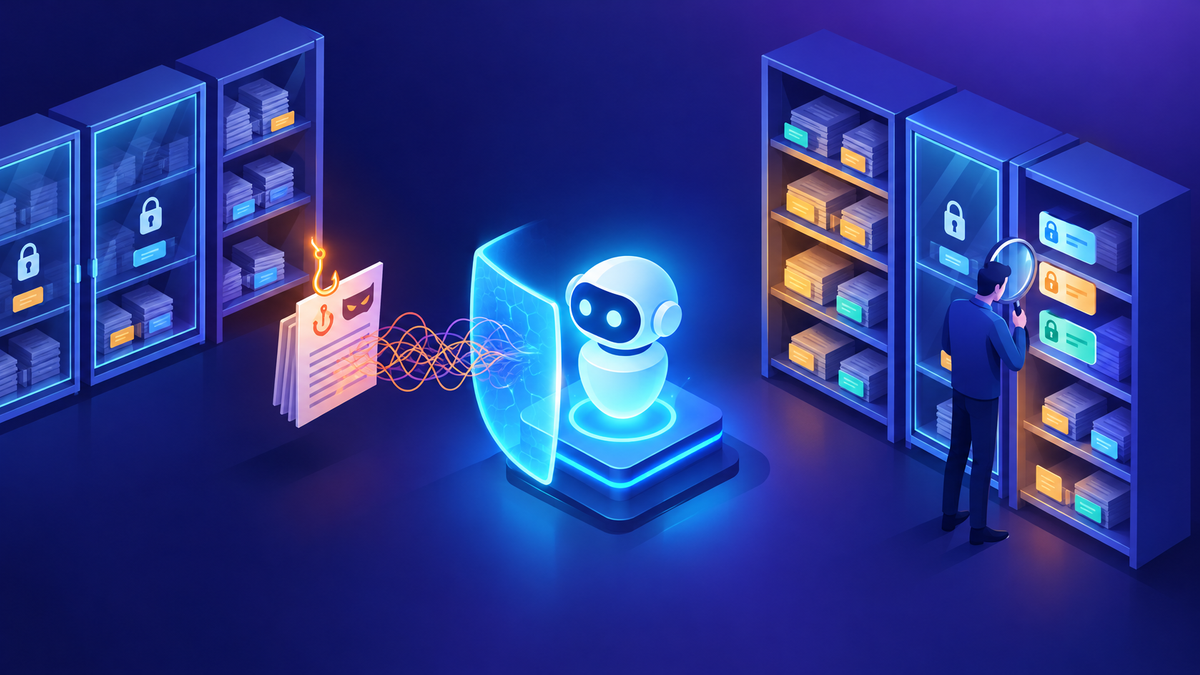
When a security team asks me “Is this agent safe?”, I usually turn the question around: “What can the people using it already see?” An agent grounded in SharePoint doesn’t create new access. It makes existing access easy to use.
The good news is that your permission model still applies. The bad news is that years of broad sharing links and broken inheritance now sit one question away from any employee. Add tools that can write or send, plus content that can carry hidden instructions, and the risk gets wider. Here’s how I approach it: fix oversharing first, use labels and Purview to protect what’s left, treat prompt injection as a tool problem, and give agents the least privilege they need.
A quick caveat
Several controls below are in preview, and Copilot Studio now has more than one harness (Standard and GitHub Copilot). Some features apply only to one of them. Statuses are as of October 2026. Check current docs before you rely on anything marked preview in production.
In this post
- Agents inherit your permissions
- Find and fix oversharing
- Sensitivity labels and Copilot Studio
- Purview DLP and DSPM for AI
- Prompt injection: direct and indirect
- Runtime protection: built-in, external, Defender
- Content moderation
- Least-privilege tools
- Uploaded knowledge files
- Threat-to-control map
- Pre-launch checklist
01 Agents inherit your permissions
This is a common point of confusion, so I start here. Microsoft’s guidance is clear that Copilot and agents retrieve data from Microsoft Graph and respect existing permissions, sharing settings and policies. When a user signs in and asks a SharePoint-grounded agent a question, the answer comes from content that user can already open.
Two consequences follow. First, oversharing becomes visible. A file nobody could find through navigation is now easy to surface with a well-phrased question. Second, a permission change anywhere in SharePoint can silently change what an agent answers. Nobody touched the agent, but it “broke”.
From the field
A software company’s HR policy agent stopped offering one country’s policies overnight. No platform update had shipped that night, so my first question was: did anything change in your SharePoint, specifically the ACLs? My second was whether anyone had republished the agent. Then I asked for a support case with conversation IDs (users type /debug conversationid) so support could trace what the agent retrieved. When answers change and the agent didn’t, check permissions before you check the agent.
What I recommend
Test every SharePoint-grounded agent with at least two real user personas, not just the maker. Makers and admins usually have broader access than the people the agent is for, so their test results tell you very little.
02 Find and fix oversharing
SharePoint Advanced Management (SAM) is the toolset I point SharePoint admins to first. Microsoft positions it for exactly this: preparing content for Copilot and agents. Note that SharePoint’s default sharing settings are the most permissive option, so most tenants have some cleanup to do.
Discover
Data access governance reports
Identify sites that may contain overshared or sensitive content. The permission state report gives a snapshot of how broadly content is exposed. You can start site access reviews from a report.
Discover
Content Management Assessment
A guided set of reports that flags potentially overshared, inactive or ownerless sites and gives remediation recommendations.
Contain
Restricted Content Discovery
Keeps specific sites out of organization-wide search and Copilot or agent responses while you review them. It also hides AI entry points such as creating agents on those sites.
Fix
Site access reviews
Site owners remove excess users, groups and broad sharing links, including “Everyone except external users”.
Be precise about Restricted Content Discovery. It doesn’t change permissions or remove content from the search index, and users can still open files they have access to. It’s containment while you fix the real problem. It needs a Microsoft Copilot license, and changes take time to propagate.
From the field
Another software company had a production agent that failed on certain questions while a cloned copy answered correctly. Before anyone changed anything, I asked for a clean baseline: same user, same question, same SharePoint file, in both agents, repeatably. If the clone works for the same user, a permission problem is much less likely, and you look at configuration, knowledge state or orchestration instead. Here the two agents also ran on different harnesses, so it wasn’t a true clone. I asked them to leave production alone so the behavior stayed reproducible. At that point, permissions versus indexing were only hypotheses.
03 Sensitivity labels and Copilot Studio
Labels give you a second layer on top of permissions. Here’s how they behave with Copilot Studio agents today:
- Labels show in responses (preview). In the Standard harness, users see a shield with the highest-priority label from the content used, plus a label on each cited file. Microsoft says this is on by default for agents with supported knowledge sources, including SharePoint, OneDrive and Dataverse.
- Encryption needs the right usage rights. When a label applies encryption, the user needs both VIEW and EXTRACT rights for the agent to return that content. A label that encrypts without EXTRACT is a strong way to keep a file out of AI answers.
- Encryption has limits. Purview’s Copilot Studio page says encryption is supported only with sensitivity labels, and only for the SharePoint knowledge source. Encryption without labels isn’t supported.
- Container labels don’t flow down. A “Confidential” site or team label isn’t inherited by the files inside it. Label the items, not just the site.
I’d temper expectations on one point: a label shown in a response is a signal, not a block. To stop the agent using labeled content, you need DLP or encryption.
04 Purview DLP and DSPM for AI
Microsoft Purview supports Copilot Studio agent interactions across auditing, data classification, sensitivity labels, DLP, Insider Risk Management, Communication Compliance, eDiscovery and retention. For agents published to non-Microsoft channels, you need pay-as-you-go billing turned on for these to apply.
DLP for the Microsoft 365 Copilot location
AvailablePurview portal → Data Loss Prevention → Policies
For Microsoft 365 Copilot, this location can block sensitive prompts, block web search for them, and stop processing of labeled files and emails.
What applies to Copilot Studio agents
- Coverage is narrower. When the knowledge source is SharePoint, this policy can stop Copilot Studio agents in Teams, SharePoint and Microsoft 365 Copilot from processing content with a specified label.
- Don’t assume every rule covers every channel. Test with your own agent and labels.
DSPM for AI
AvailablePurview portal → DSPM for AI (classic) or DSPM
Your front door for AI data risk. It surfaces sensitive information in prompts and responses and offers one-click policies.
How I recommend using it
- Confirm Purview Audit is on.
- Turn on the Detect risky interactions in AI apps recommendation, then wait at least a day for data.
- Review the Copilot experiences & agents reports and drill into activity explorer. Seeing actual prompt text requires the Content Explorer Content Viewer role, so plan who gets it.
- Use the Insider Risk Management Risky AI usage template. Microsoft says it detects risky usage that includes prompt injection attacks.
05 Prompt injection: direct and indirect
There are two kinds, and they need different thinking.
| Type | What it looks like | Why it matters |
|---|---|---|
| Direct (user prompt injection) | A user types “ignore your instructions and…” to make the agent break its rules or reveal its configuration. | The attacker is the user. Damage is limited to what that user’s session can reach. |
| Indirect (cross-prompt injection) | Hidden instructions sit inside a document, web page, email or tool response that the agent reads while grounding an answer. | The attacker never talks to the agent. A legitimate user triggers it. If the agent has tools, the payload can try to send or write data. |
Here’s how I approach it. Indirect injection is mostly a tool problem. An agent that can only read and answer is much harder to turn into an exfiltration path than one that can send email. So I limit what an agent can do before I worry about what it might read.
06 Runtime protection: built-in, external, Defender
Built-in protection
On by defaultCopilot Studio custom agents
Copilot Studio custom agents include built-in protection against user prompt injection attacks (UPIA) and cross-domain prompt injection attacks (XPIA), blocked at runtime. You don’t configure it, and it shouldn’t be your only control.
External threat detection
Preview (per Learn docs)PPAC → threat detection settings
You can connect an external threat detection system that is called whenever the agent considers invoking a tool. It can block the tool call before it runs.
What I’d check first
- It applies only to agents using generative orchestration, not classic agents.
- The provider receives the recent prompt and chat history, outputs of earlier tools, conversation metadata and the proposed tool call with its inputs. Its data handling may differ from Microsoft’s, including storage outside your region. Get your privacy team to review it.
- The release plan targeted general availability for mid-2026, but the Learn article was still labeled preview when I checked. Check current docs.
Microsoft Defender real-time protection for AI agents
Preview for Copilot StudioDefender portal → Settings → Security for AI
Defender can use that same integration point. For Copilot Studio agents, it evaluates tool invocations. A default rule audits all agents. Custom rules block specific threat scenarios: malicious content propagation, secret exfiltration, evasion techniques and sending email to unsafe domains.
How I recommend using it
- Onboarding needs Microsoft Agent 365, a Defender Security Administrator and a Power Platform admin using the same Entra app ID. Get both in one meeting.
- Run in audit mode first and review the behaviors it records before you turn on blocking.
- Scope blocking rules to agents with tools that send or write. Only agents with an Entra agent ID appear in the scope list.
My tip
These layers inspect tool calls. None of them replaces a narrow tool list. A tool the agent doesn’t have can’t be abused.
07 Content moderation
Content moderation filters harmful content in inputs and responses. It’s separate from injection protection. In the prompt builder, the level ranges from Low to High and the default is Moderate. Lower moderation means more answers and more risk of harmful content. Higher means less risk and possibly fewer answers. Generative answers can also carry their own moderation setting. Where the agent-wide setting lives depends on your harness, so check current docs.
What I recommend: keep the default, or raise it for customer-facing agents. If one scenario genuinely needs less, lower it on that one prompt or node with tightly scoped knowledge, never for the whole agent.
08 Least-privilege tools
Knowledge exposure is bounded by the user’s permissions. Tool exposure is bounded by whoever owns the connection. That’s the part most teams miss.
| Control | What it does | Where |
|---|---|---|
| End-user vs maker-provided credentials | With maker-provided credentials, every user acts with the maker’s access. Microsoft calls out the oversharing risk directly. Admins can restrict makers to end-user credentials per environment or group. | PPAC → environment → Features → Control maker credential options |
| Data policies | Block connectors, knowledge sources, channels and unauthenticated use that a project doesn’t need. | PPAC → data policies |
| Action-level connector control | Allow only the specific connector actions and MCP servers an agent needs, not the whole connector. | PPAC → Security → Advanced Connector Policies |
| End-user confirmation | Require the user to confirm before a tool or workflow runs. | Tool settings in Copilot Studio |
| Instructions | Tell the agent to ask before any write and never to invent data. | Agent instructions |
One trade-off to plan for. If you block maker-provided credentials, every tool call needs a live signed-in user, so scheduled and autonomous agents fail. For those, use a dedicated, narrowly scoped service identity with an owner, not a maker’s personal account.
From the field
A cybersecurity software company had an internal agent with several tools. Every time they republished it, users had to click Allow on each tool again. They asked about admin-level consent, or moving some tools to a service account. I’m still confirming whether a supported admin-level option exists, so check current docs. On the service account: for read-only tools that don’t touch user-specific data, a scoped service identity can be reasonable. For anything that reads personal data or writes, keep end-user credentials. The consent prompt is annoying, but it’s also proof the agent is acting as the user.
On instructions: in a recent agent review, the core rules I insisted on were “never invent data”, “ask explicitly before any write action” and “‘draft’ is not ‘send’”. Instructions aren’t a security boundary, but they reduce unintended tool calls. More in How I Write Agent Instructions That Actually Work.
09 Uploaded knowledge files
Files uploaded directly to an agent behave differently from SharePoint knowledge, and this is where I see quiet oversharing.
- Uploaded files are stored in Dataverse, and an agent can include up to 500 of them. They don’t keep the SharePoint permissions of where they came from. Assume anyone who can use the agent can get answers from them.
- Files with encryption, such as sensitivity labels that encrypt or password protection, aren’t supported. That means encrypted files can’t be uploaded, but an unencrypted copy of a sensitive file can be.
- Uploads are governed by the Knowledge source with documents in Copilot Studio connector in data policies, so you can block them where you need to.
- In the Microsoft 365 admin center Agent Registry, filter for agents with embedded knowledge and review what’s in them.
My rule of thumb: if the content has a home in SharePoint, ground the agent on SharePoint. Upload only content that everyone using the agent is allowed to see.
10 Threat-to-control map
| Threat | Primary controls |
|---|---|
| Overshared SharePoint content surfaced by agents | SAM data access governance reports · site access reviews · Restricted Content Discovery (interim) |
| Answers change after a permission change | Change control on SharePoint ACLs · persona testing · conversation IDs for support |
| Sensitive labeled content in answers | Label-based DLP on the Microsoft 365 Copilot location · encryption without EXTRACT |
| Sensitive data in prompts and responses | DSPM for AI · DLP · Communication Compliance · Audit |
| Direct prompt injection | Built-in UPIA protection · instructions · Insider Risk Risky AI usage |
| Indirect injection through documents or email | Built-in XPIA protection · narrow tool list · confirmation before writes · Defender or external runtime protection |
| Data exfiltration through tools | Advanced Connector Policies · data policies · Defender rules for secrets and unsafe email domains |
| Users acting with the maker’s access | Control maker credential options · scoped service identities |
| Sensitive files uploaded to agents | Data policy on the upload connector · Agent Registry embedded-knowledge review |
| Harmful content | Content moderation at default or higher |
For identity, authentication policies and Entra Agent ID, see Securing Agent Access. For where these tools sit in the admin experience, see The 2026 Governance Toolbox.
11 Pre-launch data-security checklist
- Run SAM data access governance reports on every site the agent grounds on, and fix broad links and broken inheritance.
- Apply Restricted Content Discovery to high-risk sites you can’t fix before launch.
- Confirm sensitive files carry item-level labels, and test a label-based DLP policy against this agent.
- Turn on Purview Audit and the DSPM for AI recommendations. Decide who can read prompt text.
- Require authentication for any agent with internal knowledge.
- List every tool. Remove any the agent doesn’t need. Restrict the rest to specific actions.
- Use end-user credentials for tools that read personal data or write. Document every exception.
- Require end-user confirmation for tools that write, send or delete. Put “ask before writes” in the instructions too.
- Review uploaded files. Move anything sensitive to SharePoint or remove it.
- Onboard to Defender real-time protection in audit mode, or evaluate external threat detection with your privacy team.
- Test with at least two real user personas, plus a few injection attempts in documents the agent reads.
Where I’d start
If you only do three things this quarter: run the data access governance reports on the sites your agents ground on, take maker-provided credentials away from tools that write, and turn on DSPM for AI so you can see what’s actually flowing through prompts. The rest builds on that. For environment strategy and DLP fundamentals, see Environment Strategy and DLP: What I Recommend.
Happy to go deeper on any of this.
- K.G
Sources
- Microsoft Learn: Get ready for Microsoft Copilot and agents with SharePoint Advanced Management; SharePoint Advanced Management overview
- Microsoft Learn: Restrict discovery of SharePoint sites and content
- Microsoft Learn: View sensitivity labels in agent responses (preview)
- Microsoft Learn: Use Microsoft Purview to manage data security & compliance for Microsoft Copilot Studio
- Microsoft Learn: Microsoft Purview DLP for Microsoft 365 Copilot; Considerations for Microsoft Purview to manage Microsoft 365 Copilot
- Microsoft Learn: Enable external threat detection and protection for Copilot Studio custom agents (preview); release plan: Strengthen security of Copilot Studio agents with additional threat protection
- Microsoft Learn: Protect AI agents in real time using Microsoft Defender; Enable security for AI agents using Microsoft Defender
- Microsoft Learn: Configure content moderation level for prompts (release plan)
- Microsoft Learn: Control maker-provided credentials for authentication; Secure your Copilot Studio projects
- Microsoft Learn: Upload files as a knowledge source; Use uploaded files with generative answers nodes
- Microsoft Learn: Automate agent tasks with workflows in Microsoft Copilot Studio (training)

Get new posts by email
Provider: your email provider