Agent Architecture
From the field archive · Learned in 2023
The 100-Second Rule: Calling Cloud and Desktop Flows From an Agent
Why an agent stops waiting for a slow flow, how I explained it to customers back then, and the patterns I recommend now that agent flows, express mode and asynchronous responses exist.
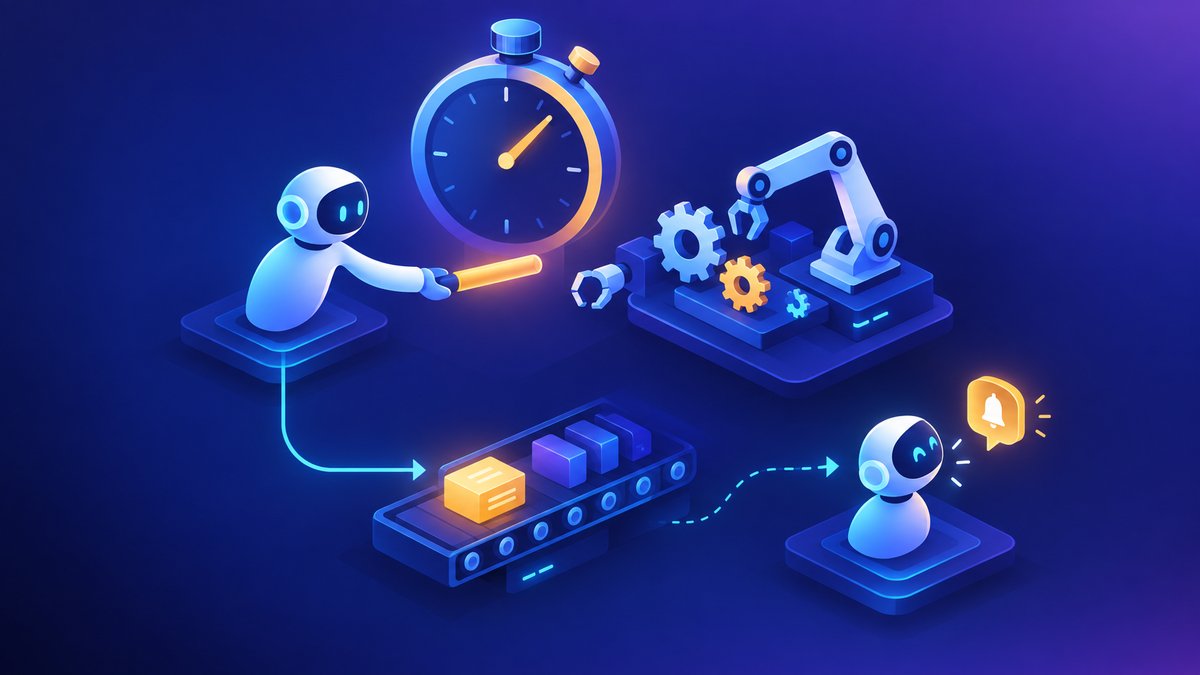
In late 2023 a customer team asked me a simple question: can our chatbot kick off a desktop automation? The answer was yes, through a cloud flow. But I added a warning that turned out to matter more than the answer itself. The bot only waits about 100 seconds for the flow to come back. Three years later I still get a version of this question every month, now with "agent" instead of "bot."
Power Virtual Agents is now Microsoft Copilot Studio, and flows that agents call are agent flows with the When an agent calls the flow trigger and the Respond to the agent action. The 100-second action limit is still documented for flows used as agent tools, and the error catalog still lists FlowActionTimedOut for flows that take longer than 100 seconds. What's new: express mode (preview) speeds up agent flows, an asynchronous response option lets a flow finish later and call back (environments on the new infrastructure only), and the computer use tool can drive a desktop or web app directly when there's no API. Some Learn articles describe a two-minute window and others the 100-second action limit, so I design for 100.
01The question that started it
The 2023 scenario was common. A team had a legacy Windows application with no API. They had already automated a few tasks with Power Automate Desktop, and they wanted users to trigger those automations by chatting with a bot instead of opening a portal.
Here's how I approached it. The bot can't call a desktop flow directly. It calls a cloud flow, and the cloud flow uses the Run a flow built with Power Automate for desktop action to start the desktop flow on a registered machine. That works. The problem is time. A desktop flow that logs into an old application, navigates three screens and copies data back can easily take longer than the bot is willing to wait.
My advice then was the same advice Microsoft documents today: optimize the flow, return less data, and move anything that doesn't need to come back to the user after the response step. I also reminded them that attended desktop runs need the right user license, which is a separate conversation from the timeout.
02Why the agent stops waiting
This is a common point of confusion, because Power Automate itself is very patient. A cloud flow run can last up to 30 days. The limit isn't about the flow. It's about the conversation. The agent is holding a turn open while the user waits, and it won't hold it forever.
| Limit | Value | Where it applies |
|---|---|---|
| Agent flow used as a tool must respond | 100 seconds | Time from the agent calling the flow to Respond to the agent |
| Child flow or app waiting for a response | 120 seconds | Parent flows and apps calling a flow synchronously |
| Single cloud flow run duration | 30 days | Everything after the response step |
| Desktop flow input size | 2 MB | Inputs passed from cloud to desktop flow |
| Desktop flow runs per connection | 70 per minute | Triggering desktop flows from cloud flows |
The takeaway: anything the user needs to see in the same turn has to fit inside 100 seconds, including connector latency, queue time on the machine and the desktop automation itself. Everything else can run much longer, as long as you design for it.
03Desktop flows behind an agent
The chain hasn't changed much since 2023: agent → agent flow → desktop flow → machine. Each hop adds time, and the desktop hop is the least predictable. A machine might be busy, a Windows session might need to be created for an unattended run, or the target app might show an unexpected dialog.
- Attended runs need an appropriate user license held by the creator of the desktop flow connection. Power Automate Premium covers attended desktop automation.
- Unattended runs need a Power Automate Process license (or Hosted Process for hosted machines). Power Automate creates a remote desktop session on the machine to run them.
- Video logs (Power Automate for desktop 2.66 or later) record the last 60 seconds of an unattended run before a failure. They're the fastest way to see why a UI step broke.
When I answered that 2023 team, I gave them two things to settle before building. First, will the desktop flow run attended or unattended, because that decides the license. Second, will the whole round trip fit inside the bot's wait time. In my experience the second question is the one teams underestimate, because they time the desktop flow in the designer and forget sign-in, machine queue time and the app's first screen. Time the full chain on production-like machines.
04Pattern 1: Make it fast
Before redesigning anything, make the synchronous path as short as it can be. Microsoft's guidance on FlowActionTimedOut says the same thing: optimize the queries and the data you return.
- Return only the fields the agent needs to answer. Large payloads slow the flow and the agent.
- Filter at the source (OData filters, top counts, specific columns) instead of looping in the flow.
- Remove approvals, delays and waits from anything the agent calls synchronously.
- Try express mode on the trigger card. It's in preview, works only on environments upgraded to the new architecture, doesn't support delay or webhook actions, and is billed under Copilot Studio metering at no extra cost. The speedup varies by flow.
If the typical run is now comfortably under the limit, stop here.
05Pattern 2: Respond first, finish later
This is the pattern I recommended in 2023, and it's still documented. Put Respond to the agent as early as you can, return an acknowledgment, and let the remaining actions run afterward. Actions after the response step can keep running up to the 30-day flow run limit.
It works well for "fire and confirm" tasks. Two cautions: the user won't see the final result in the conversation unless you send it another way, such as email or Teams, and errors after the response need their own handling because the agent has already moved on.
06Pattern 3: Asynchronous response
This is the biggest change since 2023. In environments on the new infrastructure, you can turn on Asynchronous response in the settings of the Respond to the agent action. The flow keeps running past the usual limit and sends a callback to the agent when it finishes.
Callbacks are fully supported in Microsoft Teams. Other channels might work but aren't formally tested, and callbacks aren't supported in Microsoft 365 Copilot or telephony. If the user sends another message before the flow finishes, the agent answers the new message without waiting. Also, the articles about adding a flow as a tool still list real-time response as a requirement, so test how your environment behaves and check current docs before relying on it in production.
If your agent lives in Teams and the work takes a few minutes, this is the pattern I'd try first.
07Pattern 4: Job and status
For work that takes a long time, crosses channels or must survive retries, I fall back to a classic queue design. It's more work to build, but it's predictable.
Accept
- Agent flow writes a job row (for example, in Dataverse) with a correlation ID and the user's identity
- Responds in seconds with "request received" and the ID
Work
- A separate worker flow picks up the job
- Runs the desktop flow or long API calls
- Updates status, retries safely
Deliver
- Notify the user in Teams or email
- Add a "check my request" tool so the agent can read the status
Power Automate's asynchronous response guidance describes the same idea at the HTTP level: return a 202 status and a location to check later.
In 2024 a utility's team had an HTTP call that worked in Postman but kept failing inside their flow. I suggested importing the Postman collection as a custom connector, so the request definition stayed consistent, and testing from there. When the issue moved beyond configuration, I recommended opening a support case rather than debugging by email. Long-running integrations behind an agent deserve the same discipline: a tested connector, a clear owner, and support engaged early.
08When to skip the flow
Sometimes the best answer is not to put a flow in the middle at all.
Connector or MCP tool
If the system has an API, a connector or MCP server tool is usually faster than a flow wrapping the same call.
Computer use
The computer use tool lets an agent operate a website or Windows app with a virtual mouse and keyboard, from natural-language instructions.
Desktop flow
For high-volume, rule-based UI work on a stable app, a recorded desktop flow is still the more predictable choice.
Computer use adapts to interface changes, but Microsoft's FAQ is clear that reliability varies by task and that it isn't intended for high-risk uses such as financial transactions. I'd pilot it on low-risk data entry first.
In 2026 I set up an architecture working session with an enterprise customer. The agenda covered their Copilot Studio design, MCP integrations, Power Automate challenges and long-running process patterns. Three years after that first conversation, the timeout question was still on the list. The difference is the menu of options: direct tool calls, asynchronous response, and job queues are now design choices, not workarounds.
09Which pattern for which job
| Situation | What I recommend |
|---|---|
| Typical run under about 60 seconds | Pattern 1: keep it synchronous, optimize, consider express mode |
| User only needs confirmation | Pattern 2: respond first, finish later, notify by email or Teams |
| A few minutes, agent used in Teams | Pattern 3: asynchronous response with callback |
| Long, multi-channel or must be retried | Pattern 4: job queue with a status tool |
| Legacy UI, no API | Desktop flow behind Pattern 2 or 4, or a computer use pilot |
If you're also deciding where these flows and agents should live, my post on environment strategy and DLP covers that, and the governance toolbox covers monitoring them.
Where I'd start
Time the full chain on real machines. If it fits comfortably in 100 seconds, keep it simple. If it doesn't, decide what the user actually needs to see in that turn, respond with that, and move the rest to asynchronous response or a job queue. Treat the limit as a design input, not a bug to work around.
Happy to go deeper on any of this.
— K.G
Sources
- Microsoft Learn: Resolve Microsoft Copilot Studio agent error codes
- Microsoft Learn: Create an agent flow as a tool; Add an agent flow as a tool to an agent
- Microsoft Learn: Asynchronous response support for agent flows
- Microsoft Learn: Speed up agent flow execution with express mode (preview)
- Microsoft Learn: Limits of automated, scheduled, and instant flows; Use asynchronous responses
- Microsoft Learn: Trigger desktop flows from cloud flows; Run unattended desktop flows
- Microsoft Learn: Automate web and desktop apps with computer use; FAQ for the computer use tool

Get new posts by email
Provider: your email provider