Dynamics 365 Apps
From the field archive · Learned in 2020
The UCI Migration Playbook: Moving a Large Enterprise Off the Legacy Web Client
In 2020 I helped a large automaker move dozens of Dynamics environments to the Unified Interface before the legacy web client went away. Here's what worked, what broke, and how I'd run the same kind of migration today.
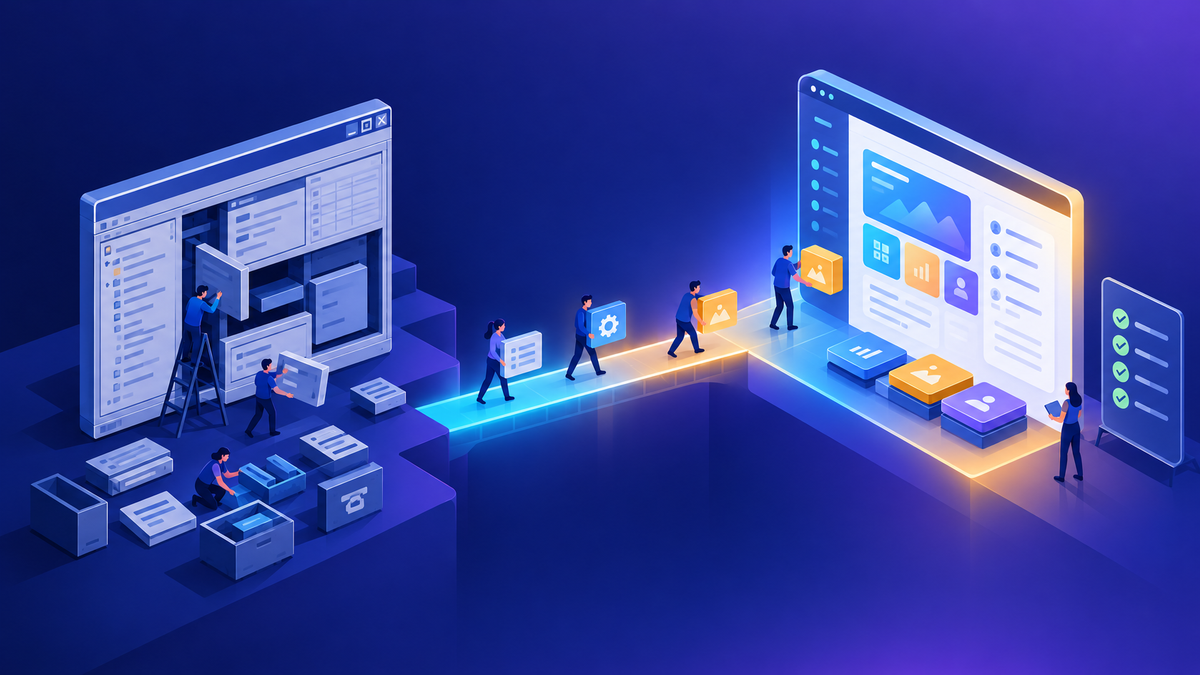
In the summer of 2020, I spent most of my mornings on a daily call with an automaker's CRM teams. They had to move their customer service apps off the legacy web client and onto the Unified Interface (UCI) before Microsoft retired it. The deadline wasn't moving, and the estate was large: many business units, many environments, years of JavaScript, and a desktop agent shell with a third-party chat integration on top.
The question I got most often was, "Isn't this just a UI change?" It's a fair question, and it's a common point of confusion. The answer is no. The Unified Interface is a different client, with a different client API surface, different form rendering, and different defaults. Anything that relied on how the old client behaved had to be re-tested. In this post I go through how we ran that migration, the issues that actually slowed us down, and what the same playbook looks like for anyone modernizing an old model-driven app today.
The legacy web client is gone. Microsoft announced its deprecation in September 2019, and environments still on it were switched to the Unified Interface automatically starting in December 2020, with no option to switch back. "UCI" is now simply how model-driven apps work. Advanced find has also been modernized: modern advanced find replaces the legacy experience, lets users filter any table in an app, and was turned on by default in 2022. Unified Service Desk, the desktop agent shell many service teams used alongside UCI, was deprecated in April 2026. Microsoft's guidance is to move to the Customer Service workspace app, and Microsoft has published a migration guide for it. Check current docs for USD's end-of-service and end-of-support dates.
01Why "just a UI change" is the wrong mental model
The Unified Interface wasn't a reskin of the old web client. It was a new responsive client built for model-driven apps, with app-based navigation and security-role-based app access. Code that reached into the page's DOM, used deprecated client APIs, or depended on old dialog behavior often worked in one client and failed quietly in the other.
Microsoft's transition checklist for Sales and Customer Service lists the usual suspects. It's still a good map for any legacy modernization:
| Legacy pattern | Recommended replacement |
|---|---|
| Deprecated client API calls in JavaScript | The documented replacement methods in the current client API |
| Process dialogs and task flows | Business process flows |
| Dynamics 365 for Outlook (COM add-in) | Dynamics 365 App for Outlook |
| Legacy service scheduling | Universal Resource Scheduling |
| Deprecated knowledge management tables | The current knowledge article tables |
The takeaway: treat it as an application migration with a UI component, not a UI change with some code clean-up.
02Inventory before you touch anything
The first thing I asked for was a list of every environment, who owned it, and whether it was already on UCI. That list turned out to be the most useful artifact of the whole project. Some business units had been on UCI for almost a year without anyone formally flipping the switch. Others had never opened it.
Here's how I approach the inventory:
- List every environment with its owner, purpose, and current client. Don't forget dev, test, training, and sandbox environments.
- Run solution checker on every unmanaged solution. It flags deprecated client API usage and other problematic patterns, and it links to the documentation for each issue.
- Export a list of JavaScript web resources and note which forms and events use them.
- List every ISV or third-party solution and confirm its UCI support with the vendor.
- Write down the business processes users actually run, not the ones in the original design document.
The project plan changed several times. At one point the team wanted to run half the users on the legacy client and half on UCI for a release. I'd temper expectations on hybrid plans like that. Every script and customization then needs two working code paths, and every defect needs to be tested twice. Once we walked through that cost, the team agreed to commit to a full cutover with one date, and the plan got much simpler.
03The issues that actually slowed us down
None of these were dramatic. They were the kind of small behavior differences that users notice on day one. In my experience, the list looks similar at most customers.
| What users saw | Why | What we did |
|---|---|---|
| A new confirmation step when picking a case from a queue, which could also remove it from the queue | The platform's pick dialog behaves differently from the old customization the team had relied on | There was no out-of-the-box switch. We used customization: either a custom command, or a pre-operation plug-in on the PickFromQueue message that keeps the queue item (the request has a documented RemoveQueueItem parameter) |
| Agents couldn't find knowledge search on the case form | Knowledge management had to be set up for the new app | Enabled and configured knowledge management for the Customer Service Hub, then retested |
| Custom forms didn't appear when distributing campaign activities | The app used a default form the team couldn't customize the same way | Reproduced it in a clean environment to separate product behavior from customization, then raised it with support |
| A plug-in's validation message showed up as a generic error | The plug-in worked as designed, but the message wasn't friendly in the new client | Reviewed the exception handling so users got a clear message |
| Script errors in production that nobody could reproduce | Different data and configuration between environments | Reproduced against a copy of production |
For the production script error, my first question was, "Was this tested in a lower environment, and can we reproduce it there?" It hadn't been. We created a copy of production and asked the team that owned the app to reproduce it there, using the exact app and steps. Most "UCI bugs" in that project turned out to be customizations or data, not the client. A clean repro in a copy of production is what tells you which one you have.
The other thing that helped was documentation the customer wrote themselves. One team got the desktop agent shell working with UCI and wrote down the exact steps during the call. That document became the starting point for every other business unit doing the same configuration, and it saved days of rework.
04Test where you'll run
One business unit planned to run user acceptance testing in an environment that was set up to get platform updates ahead of their other environments. I recommended against it. If testers find a defect there, you can't tell whether it's your code or a platform change your production environment doesn't have yet. You end up testing again somewhere else to confirm it.
What I recommend instead:
- Run UAT in an environment that's on the same update schedule and version as production.
- Refresh it from production shortly before testing, so data and configuration match.
- Give testers a short script for the top business processes, plus time for open exploration.
- Track every issue with repro steps and screenshots. "The lookup was weird" can't be fixed. A recording and the exact record can.
- Decide the go/no-go criteria before testing starts, not after.
For a broader view on how environments should be laid out for build, test, and production, see Environment Strategy and DLP: What I Recommend.
05Advanced find, security, and the long tail
Even after the main cutover, some legacy experiences lingered. Advanced find was the big one. Users relied on it heavily, and turning it off wasn't realistic. In 2021 a security review flagged a concern in that area. My advice was to avoid disabling something the business depended on. Instead, meet with the security team to understand exactly why they rated it high risk, and move to the modern experience so the platform's current protections, including content security policy, apply consistently.
That situation is behind us now. Modern advanced find replaces the legacy experience, and administrators manage it from the Power Platform admin center. Content security policy for model-driven apps is also configured there, at the environment level. I cover the security side in more detail in the companion post on passing an enterprise security scan.
The long tail also included features that were still being moved into the new experience at the time. When a team asked me for a date, I told them it hadn't been announced yet and that they shouldn't wait for it. My recommendation was to start now on anything already available in UCI, one item at a time, so they wouldn't have to rush at the end.
06The same playbook in 2026
Nobody is migrating off the legacy web client anymore. But I still use this playbook whenever a customer modernizes an old model-driven app. Today that usually means moving from Unified Service Desk to the Customer Service workspace, moving from classic customizations to modern commanding and custom pages, or cleaning up years of JavaScript.
Inventory
- Environments, owners, apps
- Solution checker results
- Scripts, plug-ins, ISV solutions
Rebuild and test
- Replace deprecated APIs and features
- UAT in a production-like environment
- Repro every issue in a copy of production
Cut over
- One date, one code path
- Train users on what changed
- Keep a short hypercare window
A few tools make this easier than it was in 2020:
- Solution checker for static analysis of your solutions before you start.
- Live monitor for model-driven apps, to see script errors with the web resource and solution that caused them, and to spot slow form loads.
- The Unified Service Desk migration guide on Microsoft Learn, which maps USD components to Customer Service workspace capabilities.
- Managed Environments and pipelines, so the rebuilt app moves through test to production as a solution. The governance toolbox post covers these.
Start with the inventory, not the code. Every migration I've seen that ran late had the same root cause: nobody knew exactly what was in use until users found it during testing.
Where I'd start
List every environment and app, with an owner for each. Run solution checker and read the results with the team that owns the code. Agree on one cutover date and one code path. Test in an environment that matches production, and reproduce every issue in a copy of production before deciding whether it's a product issue or a customization. If you're still on Unified Service Desk, start that inventory now.
Happy to go deeper on any of this.
— K.G
Sources
- Microsoft Dynamics 365 blog: Announcing the timeline to move to Unified Interface (September 2019)
- Microsoft Power Platform blog: Unified Interface transition starts December 4th 2020
- Microsoft Learn: Unified Interface transition checklist for Dynamics 365 Sales and Service
- Microsoft Learn: Advanced find in model-driven apps; Modern advanced find turned on by default (2022 release wave 2)
- Microsoft Learn: PickFromQueue action (Web API reference); Use queues to organize, prioritize, and monitor work
- Microsoft Learn: Debug a model-driven app with Live monitor
- Microsoft Learn: Migrate from Unified Service Desk to Customer Service workspace
- Microsoft Learn: Content security policy (Power Platform)

Get new posts by email
Provider: your email provider