Apps & Automation
From the field archive · Learned in 2022
Power Apps Offline: What Works and What to Plan For
How I scope offline requirements for field teams, what the platform documents today for canvas and model-driven apps, and where I draw the line.
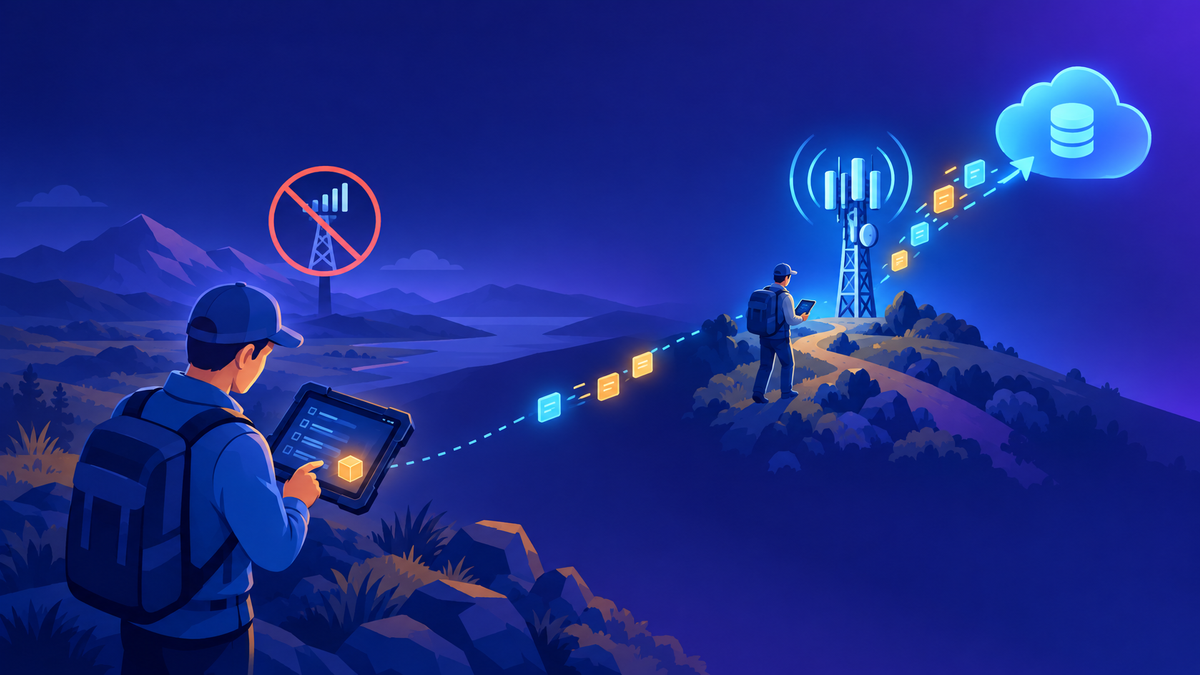
"Our people work where there's no signal. Can the app still work?" I first got that question in 2022 from an energy company that wanted a mobile data entry form for field staff. I've heard it many times since, most seriously from a utility whose engineers drive to remote sites every day. It's a fair question, and the honest answer has always been "yes, within limits you need to design for."
In this post I share how I scope offline needs, what's documented today for canvas and model-driven apps, and which requirements I treat as separate conversations.
Back then, offline in a canvas app mostly meant collections plus the LoadData and SaveData functions, with merge logic written by the maker. Today, Dataverse-based canvas apps have built-in offline-first support driven by an offline profile, with automatic sync, a local transactional database, and file and image support. Model-driven apps are offline-first by default once offline is configured. LoadData and SaveData still exist for non-Dataverse data. Everything below reflects Microsoft Learn as of October 2026.
01Start with the work, not the app
In 2022 my first reply was simple. I shared the documented capabilities and limitations and said: if your scenario doesn't run into these limits, build the app with offline and put it on their devices. That advice still holds. What changed is how much I ask before I say it.
Here's how I approach it now. I ask four questions before anyone opens Power Apps Studio.
- Which tasks must work with no connection, and which can wait until the device is back online?
- How much data does one person really need on the device: their jobs this week, or the whole region?
- Will people use phones, laptops, or both?
- Does the data live in Dataverse, or somewhere else like SharePoint or a line-of-business system?
Offline is a data design problem first. If you can't describe the slice of data a user needs offline, you aren't ready to build.
02The two offline models
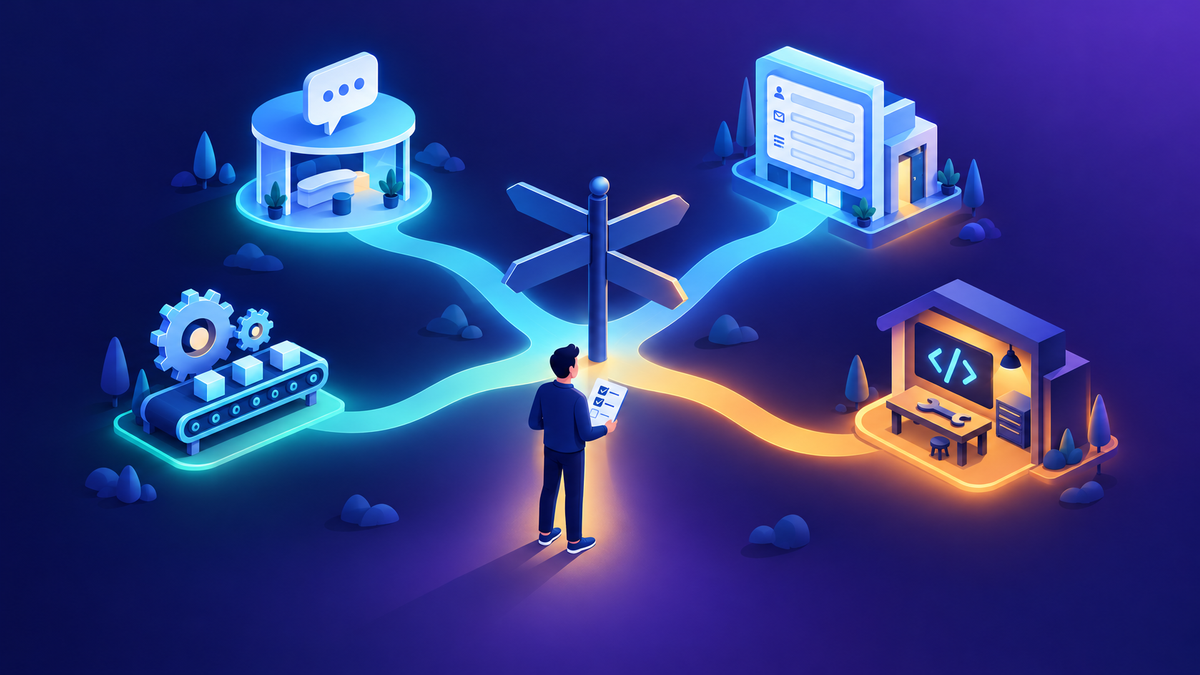
This is a common point of confusion. There are two different mechanisms, and which one you get depends on where your data lives.
| Topic | Built-in offline (Dataverse) | LoadData / SaveData |
|---|---|---|
| Data source | Dataverse tables only | Any connector, via local collections |
| Effort | Switches plus an offline profile; standard Power Fx | Custom formulas that grow with data complexity |
| Sync | Automatic, optimized delta sync | You write it |
| Conflicts | Handled automatically | Manual |
| Local store | Transactional database | Files, in app memory |
| Size guidance | Device dependent; up to 3 million records synced | Device dependent; Learn cites 30-70 MB in most cases |
If the data isn't in Dataverse, I'd temper expectations. LoadData and SaveData work for small, simple caches. They don't resolve merge conflicts for you. And Learn notes that a collection loaded this way can't update Dataverse rows that include a lookup.
03What offline-first gives you
Offline-first means the app reads from local data all the time, connected or not. That keeps performance steady as people move in and out of coverage.
You choose the data
An offline profile defines tables, columns, filters, and relationships. Autogenerated profiles are a starting point. Custom profiles are what I ship.
Initial, then delta
The first sync downloads everything in the profile. After that, canvas apps sync changes every five minutes while online.
Files and images
Download on view (default) or on sync. Use on sync only for a limited set of files people must have offline.
Status is visible
The Offline template adds a sync status icon. Users can see pending changes and errors at a glance.
Two practical points from the setup docs. Put the canvas app in a solution, because the "Can be used offline" option depends on it. And export the offline profile with the app, because it's a dependency.
04Limits I plan around
These are the documented limits I walk through with every team. None is a reason to stop. Each one is a design decision.
| Limit | What it means in practice |
|---|---|
| Where it runs | Offline needs the Power Apps mobile player on iOS, Android, or Windows. Canvas apps in a browser can't run offline. Built-in offline-first doesn't cover embedded canvas apps, custom pages, or canvas apps in Teams. |
| Connectors and flows | Non-Dataverse connectors and Power Automate flows don't run offline. Queue that work for when the device reconnects. |
| Table types | Virtual and elastic tables aren't supported offline. Notes aren't supported offline in canvas apps. |
| Relationships | Up to 15 related tables per table in the profile. Many-to-many relationships and self-referential lookups aren't supported offline in canvas apps, and lookup filters go one level deep. |
| Volume | Up to 3 million records synced in total, including hidden tables used by offline. |
| Images | Up to 14 image columns across all tables in one profile. |
| Background sync | Reliable sync needs the app in the foreground with the screen unlocked. On Windows you can allow background activity. |
| Calculated fields | Calculated and rollup columns aren't re-evaluated on the device. The server updates them after sync. |
Model-driven apps have their own list. Field-level security isn't supported offline, only system and quick views work, and Dataverse search falls back to a categorized search. Read the model-driven limitations page in full before you commit.
Filter hard. "My jobs this week" beats "all jobs in my region." Smaller profiles sync faster, use less battery, and keep you well inside the limits.
05Sync and conflicts
Every utility and field team asks about conflicts. Two people edit the same asset offline. What happens?
According to Learn, offline changes sync column by column, and the last update to each column is what Dataverse keeps, so the sync itself doesn't fail on conflicting edits. If a plug-in or server validation rejects a change, the change is reverted on the device and a row is written to the Sync Error table. Model-driven apps have an optional conflict detection setting, which Microsoft doesn't recommend turning on. That setting doesn't apply to canvas apps at all.
What I recommend: give users read access to the Sync Error table, surface errors in the app, and add a cloud flow that notifies the owner when an error lands. That turns a silent failure into a task someone can fix.
A utility's evaluation asked us to show conflict alerts, rollback, and record history for offline edits. The documented behavior covers alerts through the Sync Error table and server-side validation. For rollback and lineage, I'd point to Dataverse auditing on the server rather than promise device-side versioning. I'd rather show a clear, documented answer than a clever workaround nobody can support.
06Security on the device
Field data on a phone worries security teams, and it should. Offline apps still respect Dataverse security roles. For offline canvas apps, users also need read access to the Canvas App, Mobile offline profile, and Sync Error tables, which the Basic User role doesn't grant. For the device itself, Microsoft Intune can manage Power Apps mobile, restrict cut, copy, and paste, and provide encryption at rest. Intune is a separate product, and Learn notes that Intune advanced app settings aren't currently supported with Power Apps mobile. Pair it with Conditional Access and your environment settings.
Offline apps should also live in a governed environment with clear data policies. I cover that setup in environment strategy and DLP, and how I monitor what's deployed in the governance toolbox.
07Requirements I scope separately
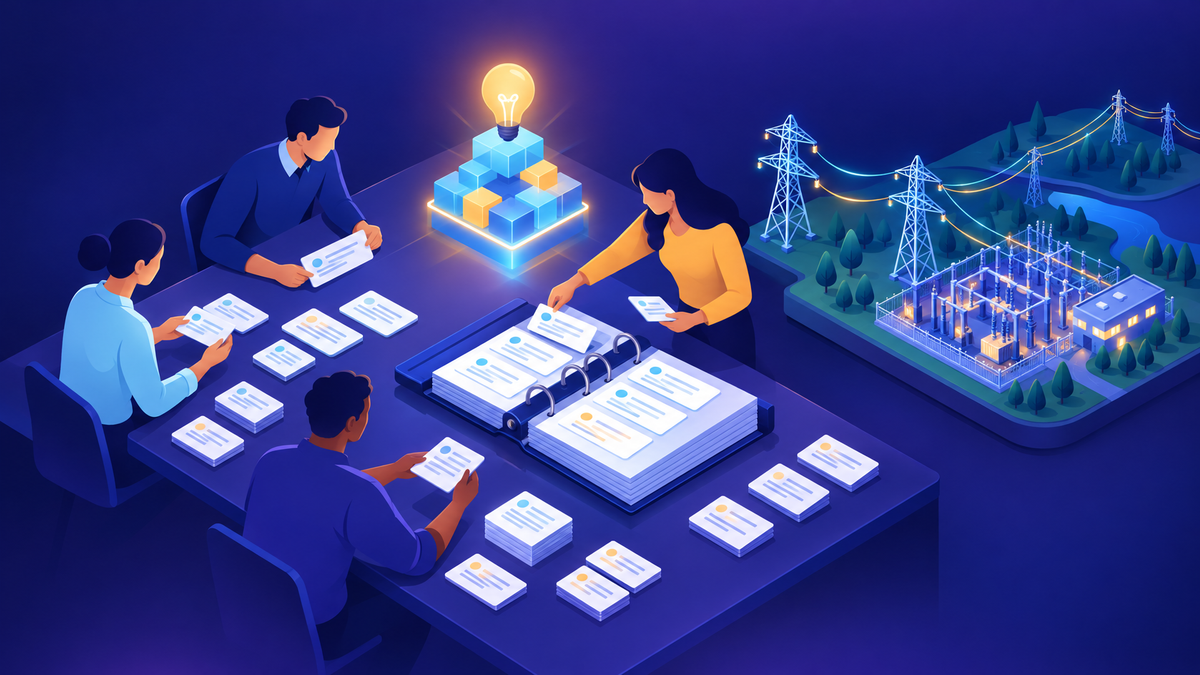
Some offline requests go beyond a forms-over-data app. In a large utility evaluation the list included geofence-based data priming, bandwidth caps during sync, automatic compression on low-storage devices, offline map navigation, and editing GIS layers without a connection. I don't promise any of these from Power Apps alone.
Here's how I handle them. I map each one to a documented capability, a different product (such as a GIS vendor's mobile app or Dynamics 365 Field Service), or "not supported today." When someone asks what's coming next, I only commit to what's publicly documented. Roadmaps change, and a design built on a hoped-for feature is a risk you hand to the customer.
Push notifications came up as early as 2021, when a customer wanted to notify users of a mobile app. That's still a clean pattern: the Power Apps Notification connector's "Send push notification V2" action from a flow, with parameters that open a specific record. Each user must have opened the app in Power Apps mobile once before notifications arrive.
08Readiness checklist
- The offline tasks and the data slice per user are written down.
- All offline data is in Dataverse, or I've accepted LoadData and SaveData limits.
- Users will run the app in the Power Apps mobile player, not a browser, Teams, or an embedded app.
- The app and its custom offline profile are in a solution.
- Every table has filters; total records stay well under 3 million.
- No offline step depends on a flow or non-Dataverse connector.
- Sync errors are visible to users and routed to an owner.
- Security roles include read on the offline tables; Intune and Conditional Access are agreed.
- Maps, GIS editing, and other edge needs are mapped to a product or marked out of scope.
Where I'd start
Take one field task and one user. Build a small canvas or model-driven app on Dataverse, turn on offline, and create a custom profile filtered to that user's work for the week. Put a test device in airplane mode, do the job, reconnect, and read the Sync Error table. You'll learn more from that afternoon than from any requirements workshop.
Happy to go deeper on any of this.
— K.G
Sources
- Microsoft Learn: Develop offline-capable canvas apps
- Microsoft Learn: Mobile offline for canvas apps overview; Set up mobile offline for canvas apps; Work with canvas apps offline
- Microsoft Learn: Mobile offline limitations for canvas apps; Mobile offline limitations for model-driven apps
- Microsoft Learn: Mobile offline for model-driven apps overview; How offline first functionality works in Power Apps mobile
- Microsoft Learn: Configure files and images in offline canvas apps; Sync data offline in the background
- Microsoft Learn: Resolve sync conflicts with the server
- Microsoft Learn: Manage your mobile app with Microsoft Intune
- Microsoft Learn: Create push notifications for the Power Apps mobile app using Power Automate

Get new posts by email
Provider: your email provider