Operations
From the field archive · Learned in 2020
Removing Solutions Safely: Dependencies, Order of Operations and Failed Upgrades
A failed upgrade in a staging environment, the decision to remove two apps instead, and the order of operations I've used ever since to take solutions out without breaking things.
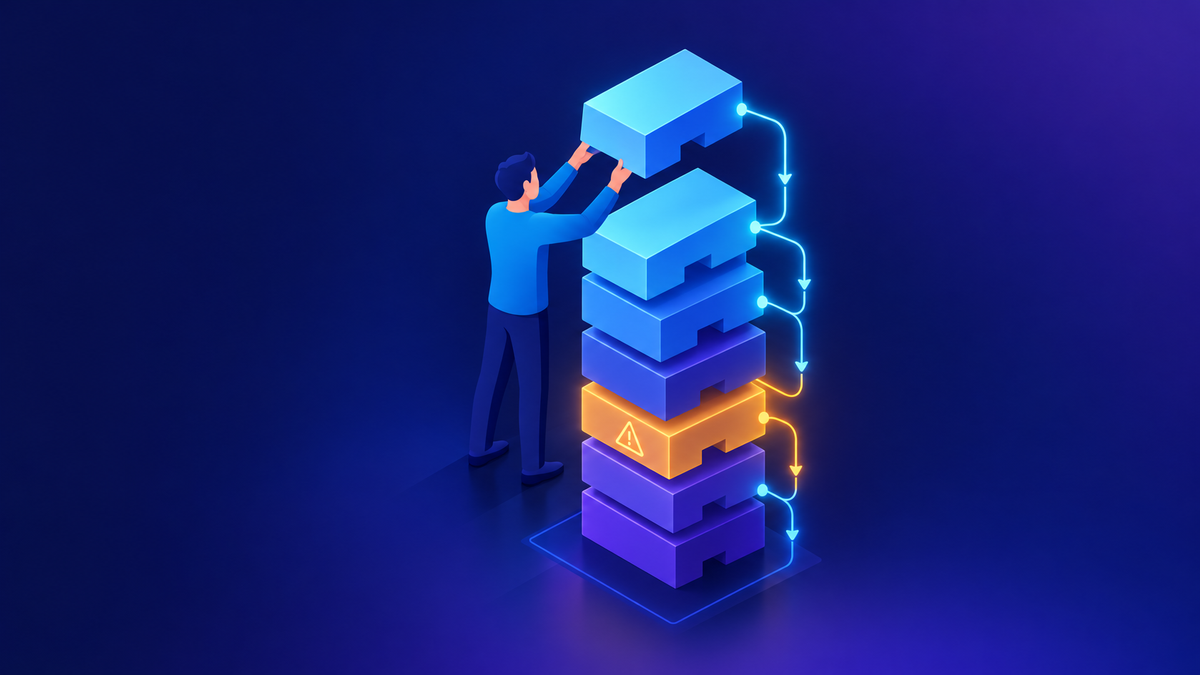
In October 2020 a customer's upgrade of Project Service Automation failed in their staging environment. After a long meeting, we made a different call: instead of forcing the upgrade through, they would remove Project Service Automation and Field Service entirely. Installing those apps had been easy. Removing them safely took far more planning.
Project Service Automation reached end of support on March 31, 2025, and its path forward is Dynamics 365 Project Operations. The tooling for removal is much better now. Power Apps shows solution layers for any component, a dependencies page that lists exactly what blocks a delete, and a solution history with error details. Single-step upgrades no longer use a temporary "_Upgrade" solution. Pipelines in Power Platform deploy managed solutions with pre-validation and keep a copy of every artifact. Backups are retained for seven days by default, or up to 28 days for production managed environments. You can copy an environment yourself as "Everything" or "Customizations and schemas only".
The platform changed. The core lesson didn't: removal is a planned change with an order, not a button. Here's how I approach it.
01Why removing is harder than installing
Installing a managed solution adds a layer. Removing it has to unwind that layer and everything that came to depend on it since. Three facts from Microsoft Learn explain most of the pain:
- Dependencies block deletes. You can't delete a component that another component depends on until you remove the dependency or the dependent component.
- Layers stack. When several managed solutions are installed, each newer one sits on top. Uninstall one and the layer below takes effect.
- Deleting is destructive. Deleting a managed solution deletes all its components and any related data. There's no undo.
The last thing you installed is usually the first thing you have to remove. Work from the top of the stack down.
02The 2020 story
The upgrade error in staging pointed at dependencies, so I pulled the list of components the project app depended on and that had to go first. We didn't touch staging directly. We made a copy of it and rehearsed the removal there, and the team tested the result before anything else happened. Our side didn't have permissions in their environments, so we wrote out the uninstall steps in sequence and their admins ran them. Part way through, a removal failed. The logs suggested two solution operations had overlapped, so my first question was whether a second install or uninstall had been started while one was still running. That one question saved a lot of time.
Three lessons came out of it, and I still use all of them:
- Rehearse on a copy. The copy found the real dependency chain before production did.
- Write the sequence down. When the person running the steps isn't the person who planned them, an ordered list is the plan.
- One solution operation at a time. Don't start an import, upgrade or uninstall while another one is running in the same environment.
03Read the layers before you blame the import
A related question I got often in 2020: "We imported the managed solution, but production doesn't show the changes." It's a common point of confusion. The import usually worked. Something else sits on top.
Unmanaged customizations always sit in the top layer, so they decide how a component behaves. If someone edited a form directly in production, a newer managed version underneath won't show until that unmanaged layer is removed. Today, See solution layers shows each layer for a component, with the active one at the top. Remove active customizations removes the unmanaged layer. That can't be undone, so check what's in it first.
A customer's solution import kept failing on security role permissions. I tested in my own environment: creating a custom table normally adds the right privileges to the out-of-the-box System Customizer role automatically. In their case those privileges weren't there. So my question back was whether anyone had modified the standard role. When an import fails on something the platform normally handles for you, look for a customization to an out-of-the-box component first.
04The order of operations
This is the sequence I recommend for removing a managed solution, or a whole app, from an environment that matters.
Understand
- List installed solutions and their order
- Run Show dependencies on the solution's key components
- Check layers for unmanaged changes
- Decide what data you must keep
Prove it on a copy
- Copy production to a sandbox ("Everything")
- Remove from the top of the stack down
- Record every step and error
- Have the business test the result
Do it once, in order
- Take a manual backup first
- Export the data you need to keep
- Run one operation at a time
- Check solution history after each step
A few details that matter:
- Use the dependencies page. Its "Delete blocked by" tab is your to-do list. "Remove dependency" can edit some component types for you, such as forms that reference a column. Others need a manual edit.
- Prefer upgrade for single components. To remove one component, Learn recommends shipping a new version of the solution without it and importing it as an Upgrade. Deleting the whole solution is the blunt option.
- Know the import options. Upgrade deletes components missing from the new version. Stage for Upgrade keeps old and new side by side so you can migrate data first. Update replaces the solution but leaves missing components in place.
- Treat the default solution as a view, not a package. When someone hits an error exporting the default solution, my advice is to package the components they need into their own solution instead.
Put the rehearsal on the calendar as a real task with an owner. Most failed removals I've seen skipped it because "it's only an uninstall."
05When an upgrade fails
Failed upgrades are often what start a removal conversation. Here's where I look first.
| Symptom | What I check |
|---|---|
| Import fails with a dependency error | Solution history error details, which can link to the layers involved. Then the dependencies page for the named component. |
| Import "succeeds" but nothing changes | Solution layers. An unmanaged layer or a newer managed solution is probably on top. |
| Uninstall fails part way | Whether another solution operation was running at the same time. Retry only after it finishes. |
| Upgrade left two versions installed | A staged or interrupted upgrade leaves an "_Upgrade" solution next to the original. Apply Solution Upgrade completes it. |
| Failure in a first-party app upgrade | The app's own upgrade guidance and logs. For example, the Project Service Automation to Project Operations upgrade had its own upgrade logs and test-first advice. |
| Environment is now in a bad state | Restore from a backup to a sandbox, compare, and only then decide about production. |
06Today's toolset
Solution layers and dependencies
See solution layers shows the order in which solutions changed a component and what each layer changed. The dependencies page has three tabs: Delete blocked by, Used by and Uses. Solution history keeps imports, exports and uninstalls, with error codes, for 180 days.
Backup, restore and copy
System backups are retained for seven days by default, or up to 28 days for production managed environments. Take a manual backup before major changes. Restores go to sandbox-type environments in the same region. To restore over production you first switch it to sandbox. Copy lets you choose "Everything" for upgrade testing or "Customizations and schemas only" for development.
Watch for
- A copied or restored environment starts in administration mode with background operations off. Review email sync, plug-ins and flows before turning them on.
- Copy and restore need at least 1 GB of available capacity.
Pipelines in Power Platform
Pipelines pre-validate deployments, catching issues like missing dependencies before they run. They store the managed and unmanaged artifact for every deployment and import using Upgrade by default. They can redeploy a previous version if the setting is enabled. Environments used in a pipeline generally need to be Managed Environments, with exceptions for the host and development environments. Check the current licensing notes.
Moving an environment between geographies
In late 2020 a customer asked to move a whole set of environments to a different geography. Today Learn describes geo-to-geo migration as limited and generally not available, requested through your account team or support, taking at least ten days. Many settings, policies and links have to be noted and reapplied afterward. Plan it like a removal: inventory first.
For how environment strategy keeps these operations manageable, see Environment Strategy and DLP: What I Recommend. For the admin tools that help you inventory what's installed, see The 2026 Governance Toolbox.
07Checklist
- Installed solutions listed in layer order, newest first.
- "Delete blocked by" reviewed for every key component, with an owner for each fix.
- Unmanaged layers in production identified and understood.
- Data to keep exported before any delete.
- Full rehearsal on an "Everything" copy, signed off by the business.
- Manual backup taken right before the production run.
- One solution operation at a time, checked in solution history after each step.
- Future releases deployed through pipelines as managed solutions.
Where I'd start
Pick the solution you're most nervous about removing. Open See solution layers on its most-used table and run Show dependencies on the solution. If the lists surprise you, you've found your rehearsal plan. Then copy production to a sandbox and practice there before anyone touches the real thing.
Happy to go deeper on any of this.
— K.G
Sources
- Microsoft Learn: Solution layers in Power Platform
- Microsoft Learn: View dependencies for a component in Power Apps
- Microsoft Learn: Upgrade or update a solution
- Microsoft Learn: View the history of a solution
- Microsoft Learn: Back up and restore environments (updated Oct 2026); Copy an environment
- Microsoft Learn: Overview of pipelines in Power Platform (updated Sep 2026)
- Microsoft Learn: Geo-to-geo migrations
- Microsoft Learn: What is Dynamics 365 Project Service Automation?; Project Service Automation end of life FAQ

Get new posts by email
Provider: your email provider